You run a small shop, a stall, a tuition class or a freelance business, and customers keep asking “what’s your UPI ID?” Typing it out takes time, and one wrong character sends the money to the wrong place. A UPI QR code puts your payment details one scan away.
The problem
Getting paid by UPI sounds simple, but the small steps add up. The customer has to ask for your ID, you read it out or write it down, they type it into their app, and then they type the amount. If the line is long or the shop is noisy, mistakes happen: a missing letter, a swapped character, a payment to a stranger.
The same thing happens with invoices, flyers and delivery slips. Printing a UPI ID as plain text asks the customer to copy it by hand. Many people will simply pay by another method, or put it off and forget.
What you need is a way to hand over your payment details without anyone typing them. That is exactly what a UPI QR code does.
How a UPI QR code solves it
A UPI QR code carries your payment details in a format that UPI apps understand. Here is what your customer sees:
- They open their UPI app and choose the scan option (or use their phone camera, depending on the app).
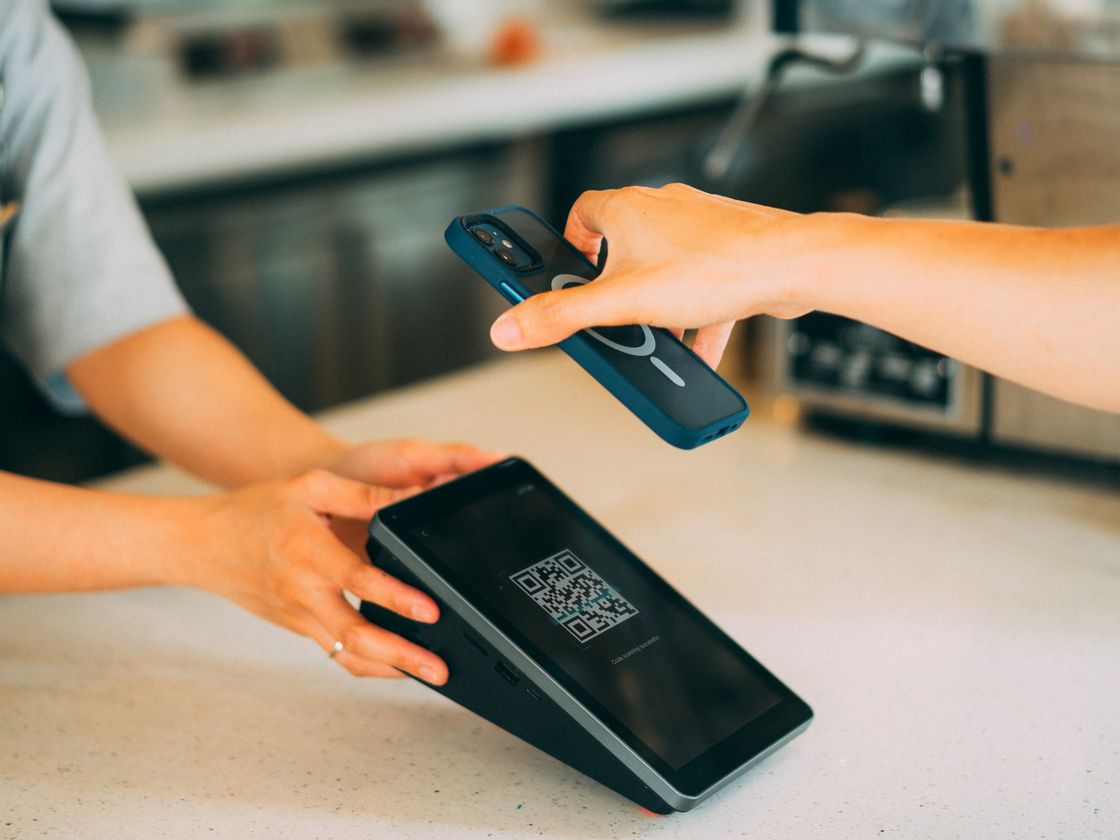
- They point it at your code. The app reads your payee details from the code.
- The app shows who they are paying, so they can check the name before going further.
- They enter the amount (if you did not set one), confirm and pay inside their own app.
Infinite QR only creates the code. The payment itself happens in the customer’s UPI app, and Infinite QR never holds, touches or processes any money.
Who it’s for
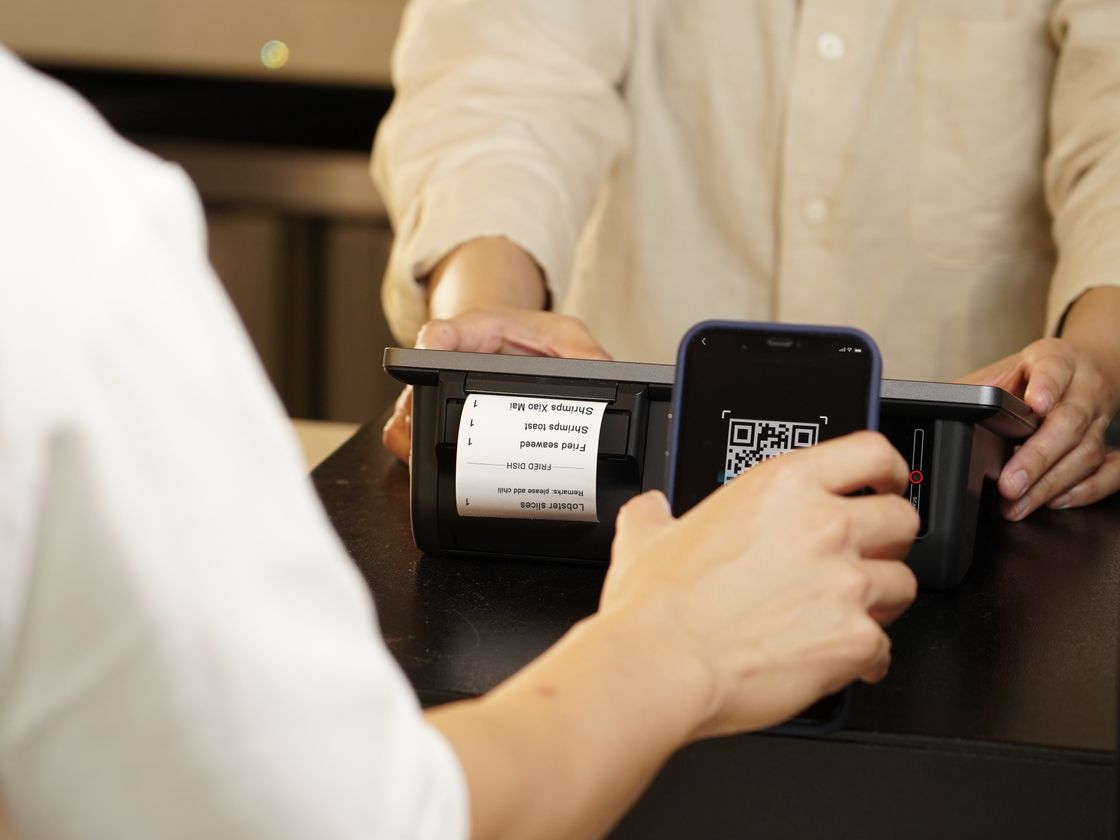
- Shops and market stalls. Put the code on the counter so customers can pay without asking for your ID.
- Tutors and coaches. Add the code to your fee notices and class handouts.
- Freelancers. Print the code on invoices so clients can pay straight from the document.
- Delivery and home services. Hand over a card with the code when the job is done.
- Community groups and clubs. Collect small contributions or membership fees with one shared code.
- Event stalls and pop-ups. Keep one code on a stand and you are ready for every customer.
How to create one with Infinite QR
- Sign up. Create your account at Infinite QR. The UPI type is included in every paid plan, starting with Starter at $1 a month. It is not part of the Free plan.
- Choose the UPI type in the QR code generator. The app offers two versions: a static UPI code and a dynamic UPI code.
- Fill in your payment details, such as your UPI ID and the name you want customers to see. Read them back carefully before you go on.
- Customize the look. Choose colors and a shape, and add your logo (logos are available on paid plans). Keep a dark code on a light background.
- Download it as PNG or SVG. PNG suits screens and small prints; SVG is better for large signs.
- Test-scan before printing. Scan the code with a UPI app and check that the right name appears. If possible, make one small test payment to yourself or a trusted contact.
Static or dynamic?
With the static version, your details are stored inside the code itself. That means it cannot be changed after printing, and scans are not counted. If your UPI ID changes, you make a new code and print it again. With the dynamic version, you can edit the details after printing, and each scan is recorded with the date and time, approximate location and device type. See dynamic QR codes for how that works.
Tips for better results
- Add a clear call to action. “Scan to pay with UPI” tells people exactly what to do.
- Place it at hand height. Put it at the point of payment, such as next to the till, not across the room.
- Print it big enough. A code that is too small is hard to scan. Our QR code size guide has simple rules of thumb.
- Keep contrast high. Dark code, light background, and no glossy finish that causes glare.
- Test on more than one phone and app. Different UPI apps can behave a little differently.
- Display the name customers should expect. Customers can then compare it with what their app shows.
Common mistakes to avoid
- Not checking the details. A single wrong character in the UPI ID sends money to someone else. Check twice before printing.
- Printing hundreds of static codes, then changing accounts. If your details might change, use the dynamic version.
- Skipping the test. Always scan the printed code, not just the screen version.
- Leaving the code open to tampering. Check that nobody has stuck another code over yours. Read about QR code safety.
- Low contrast or a crowded design. Fancy colors or a large logo can make scanning unreliable.
Questions people ask
Does Infinite QR process the payment?
No. Infinite QR only creates the code. The payment is made in the customer’s UPI app, and Infinite QR never holds or moves money.
Can I change my UPI details after printing?
Only with the dynamic version. A static code stores the details inside itself, so a change means a new code. A dynamic code can be edited without reprinting.
Can I count how many people scan it?
Scans are counted only on dynamic codes. Static codes do not record scans.
Is UPI included in the Free plan?
No. UPI is included in every paid plan, starting at $1 a month.
Ready to make your own? The UPI QR code is included in every paid plan from $1 a month. See the plans and start creating.