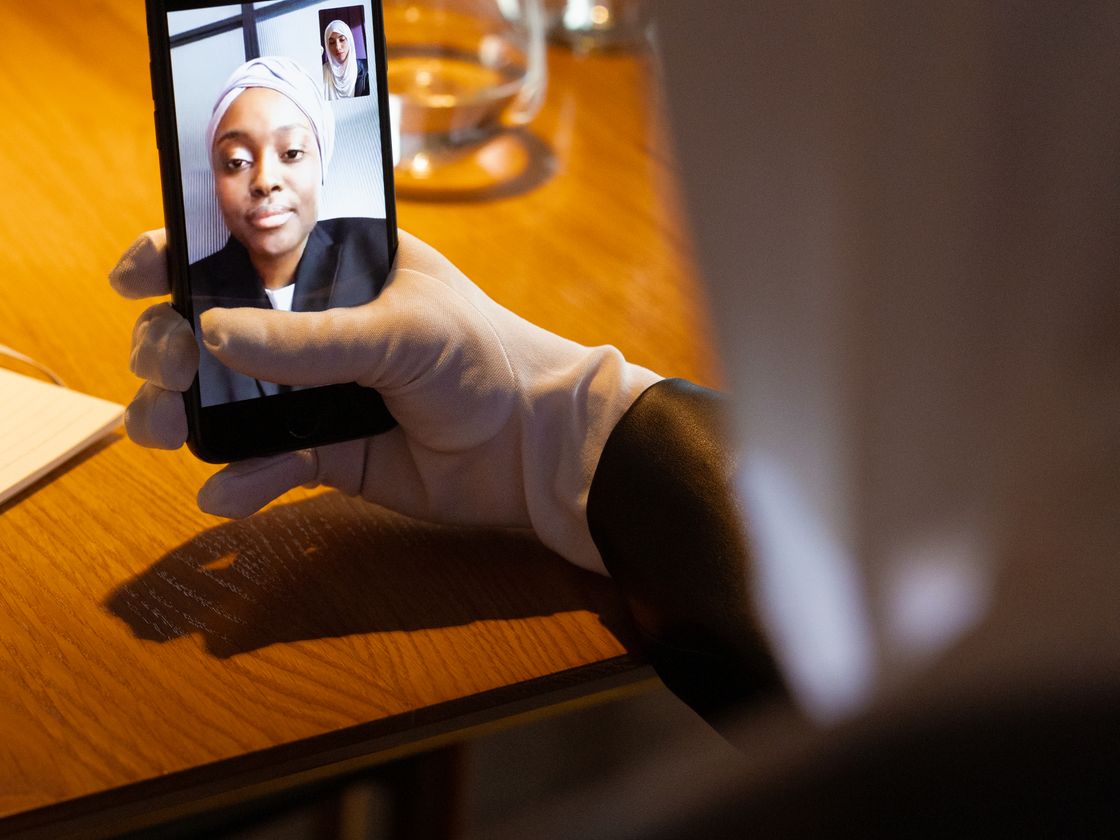
You want clients, family or students to reach you on video, but asking them to find your number, open FaceTime and type it in loses people at every step. Some never call at all. A FaceTime QR code puts the call one scan away.
The problem
Video calls feel personal, and for many businesses they are the best way to help someone: a tutor meeting a new student, a salon offering a quick consultation, a shop owner showing a product, a landlord walking a tenant through a repair. The trouble is getting the call started.
The usual process is clumsy. Someone sees your phone number or Apple ID email on a flyer or a window sign, memorizes or copies it, switches apps, taps the new-call field and types it out. Every step is a chance to mistype a digit, forget the number or simply decide it is not worth the effort.
Printed material makes it worse. Nobody wants to retype a long email address from a poster. And if you hand out your contact details in many places, you end up answering the same “how do I reach you on video?” question again and again.
How a FaceTime QR code solves it
A FaceTime QR code holds your FaceTime contact, either a phone number or an email address linked to your Apple account. Here is what happens from the customer’s side:
- They point the phone camera at the code. No app download is needed just to scan.
- Their phone shows a prompt to open FaceTime with your contact filled in.
- They tap to confirm and the call starts.
There is no typing, so there are no typos. FaceTime works on Apple devices only, so the code is best for audiences that mostly use iPhones, iPads or Macs. A person on a device without FaceTime will not be able to complete the call, so it is smart to offer another contact option, such as a phone call QR code, alongside it.
Who it’s for
- Tutors and coaches. Put the code on your flyer or website so prospective students can start a video chat to meet you.
- Salons, studios and personal services. Offer a quick video consultation before an appointment.
- Remote sales and showrooms. Let shoppers call you to see a product live.
- Property managers and landlords. Give tenants an easy way to show you a problem on camera.
- Families and caregivers. Stick a code on the fridge or an older relative’s tablet case for one-scan calls.
- Support and help desks. Add the code to a product manual so customers can get a face-to-face walkthrough.
How to create one with Infinite QR
- Sign up. Create an account at Infinite QR. You can start free, but the FaceTime type is not part of the Free plan.
- Choose the FaceTime type. It is included in every paid plan, starting with Starter at $1 a month.
- Enter your details. Add the phone number or Apple ID email people should call. Double-check it, because you will print it.
- Customize. Pick colors and a shape. On paid plans you can also add your logo. Keep a dark code on a light background.
- Download. Choose PNG for documents and screens or SVG for print at any size.
- Test-scan it. Use an iPhone or iPad and confirm that FaceTime opens with the right contact before you print anything.
The FaceTime type is a static code. That means the contact is stored inside the code itself. If your number changes, you will need to create and print a new code, and scans are not counted. If you expect your contact to change, see the tips below.
Tips for better results
- Say what the code does. A short line such as “Scan to FaceTime us” tells people what to expect.
- Mention your hours. People will scan at any time, so add “Video calls Mon–Fri, 9 to 5” so they know when you will answer.
- Print it large enough. On a poster or window, aim for at least 1 inch for close-up viewing and bigger if people scan from a few feet away. See our QR code size guide.
- Use strong contrast. Dark code, light background. Avoid placing it on busy photos.
- Offer a fallback. Print your phone number or add a second code for people who do not use Apple devices.
- Use a dedicated contact if you can. A number or Apple ID used just for business calls is easier to manage than your personal one.
Common mistakes to avoid
- Printing a wrong number. Check every digit and test the scan first.
- Using it for a mixed audience. FaceTime does not run on every phone, so do not make it your only contact option.
- Forgetting you must answer. A code that leads to missed calls hurts more than having none. Only post it when someone can pick up.
- Using the code for something that changes often. A static code cannot be edited. If your details change a lot, point people to a page you control instead, using a Website URL QR code that you can update after printing.
Questions people ask
Do customers need to install anything?
No separate scanning app is needed on modern phones, since the camera reads the code. FaceTime itself comes with Apple devices.
Will it work on Android phones?
FaceTime is made for Apple devices, so you should expect it to work only there. Offer another way to reach you for everyone else.
Can I change the number later?
Not on this code. Because it is static, the contact lives inside the code. Make a new code and replace the old printed copies. For details on the difference, read about static vs dynamic QR codes.
Can I see how many people scanned it?
No. Static codes do not record scans. If you need counts, use a dynamic code type instead.
Ready to make yours? The FaceTime QR code is included in every paid plan from $1 a month. See the plans and get started.