You get paid in small amounts all the time — at a market stall, after a service call, for a tip or a donation — and every time you have to spell out your PayPal details. It’s slow, and one typo can send the wrong message or send a payment to the wrong place.
The problem
Getting paid in person should be quick. But if a customer has to ask for your PayPal email or handle, then type it in correctly, you lose time and sometimes the sale. People get impatient, or they decide to pay later and forget.
Spelling out details is also error-prone. A mistyped character in an address can lead to confusion, and no one wants to be explaining a payment mix-up afterward.
If you take payments online and offline, you may want one easy way for customers to find your PayPal without handing out a card or a screen.
Safety is part of the picture too. Customers feel more comfortable when they can see where a payment is going before they confirm it, and PayPal itself shows the details on their screen. The code simply takes them to the right place without typing.
It is also a good fit for people who want a simple option without a card reader or a point-of-sale system. The code sits on a sign or a card, and customers use the PayPal account they already have.
How a PayPal QR code solves it
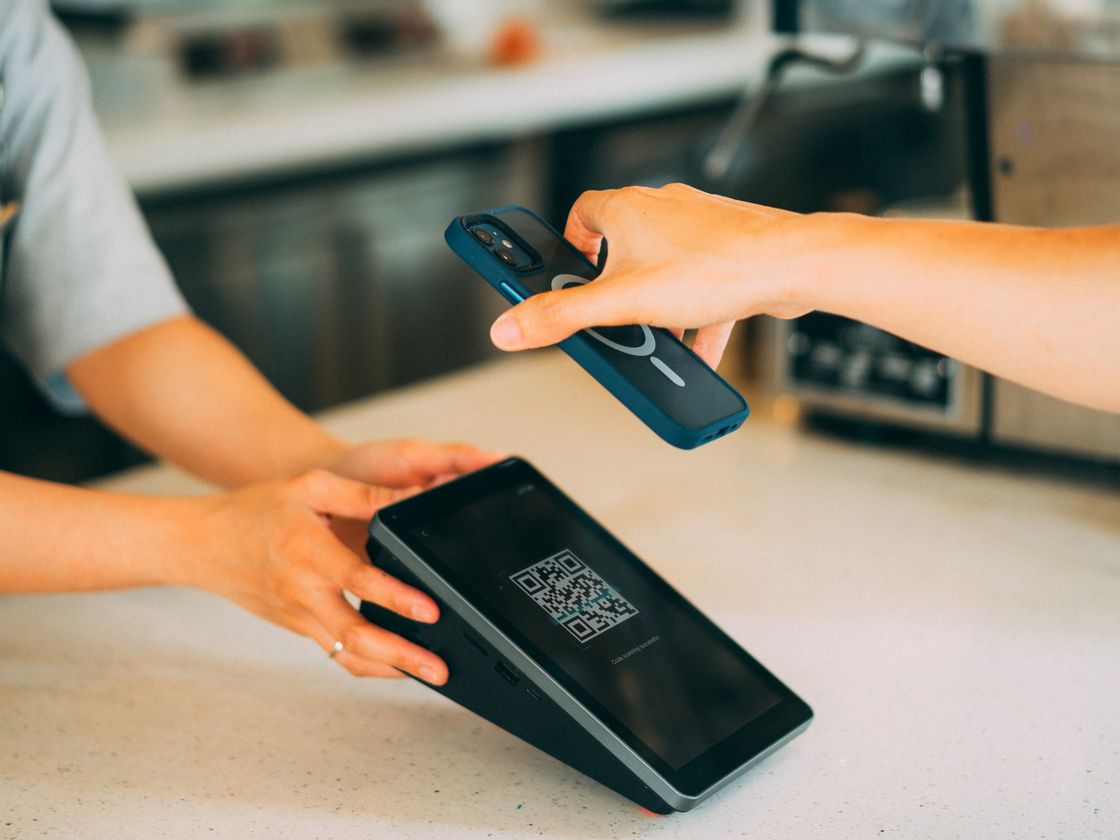
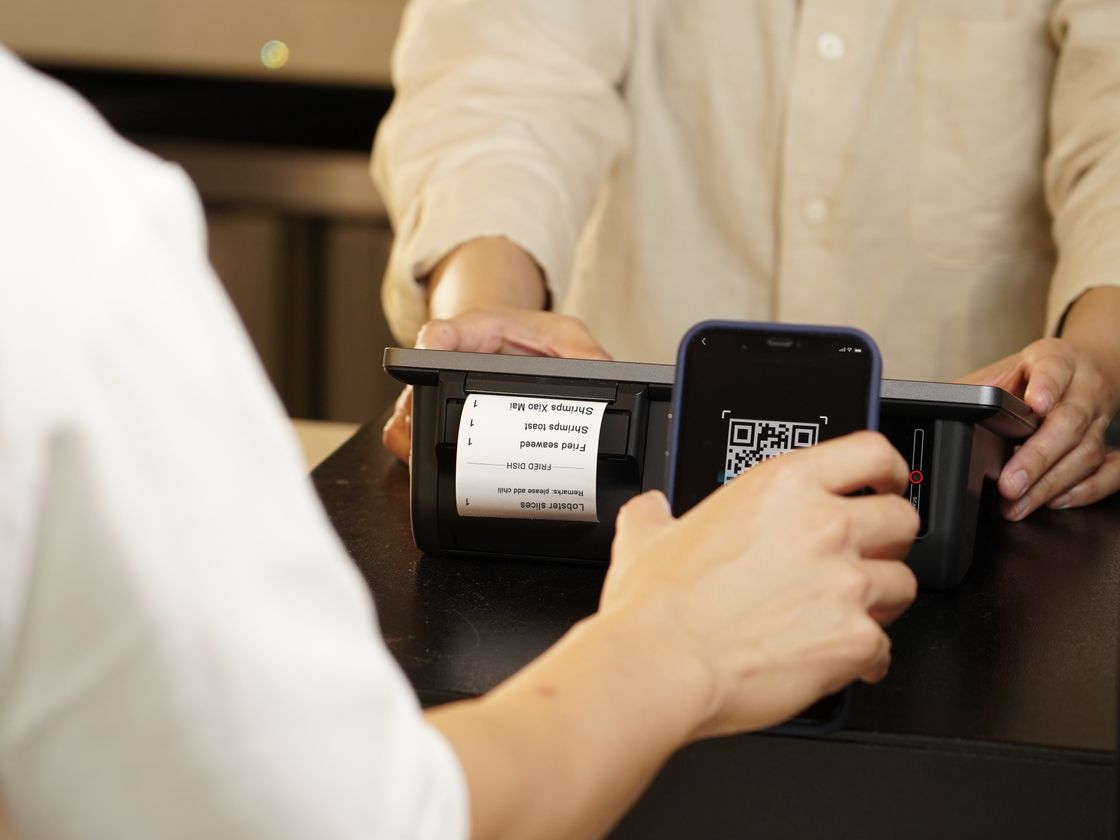
A PayPal QR code opens your PayPal payment details on the customer’s phone. Infinite QR only creates the code that opens PayPal. The payment itself happens inside PayPal, and Infinite QR never holds or processes any money. From the customer’s side:
- They scan the code with their phone camera.
- PayPal opens with your details ready, in the app if they have it installed or in the browser.
- They review and complete the payment in PayPal, using their own account.
Because the PayPal type is dynamic, you can change where the code points without reprinting it, and each scan is recorded with the date, time, approximate location and device type.
Remember that the code only opens PayPal. Anything to do with fees, refunds, disputes or account rules is handled by PayPal, so check PayPal’s current terms for how those work.
Who it’s for
- Market and craft vendors. Put the code on your table sign so customers can pay quickly.
- Freelancers and tutors. Add it to invoices and cards so clients know where to send payment.
- Tip jars. Print a code next to the jar for people who don’t carry cash.
- Small nonprofits and clubs. Use it on flyers for dues or small donations. For more ideas, read about donation QR codes for nonprofits.
- Street performers and buskers. Let fans pay or tip from a sign.
- Home-based sellers. Place it on delivery notes and thank-you cards.
How to create one with Infinite QR
The PayPal type is included in every paid plan, starting with Starter at $1 a month. It is not part of the Free plan.
- Sign up and pick a paid plan on the pricing page.
- Choose the PayPal type in the QR code generator.
- Fill in the details. Enter your PayPal account details as requested. Double-check every character before you continue.
- Customize the design. Choose colors and a shape, and add your logo (logos are a paid-plan feature).
- Download the code as a PNG or SVG.
- Test-scan before printing. Scan it with your own phone and confirm that it opens the right PayPal account. Don’t complete a payment to yourself — just check the details shown.
For the bigger picture, read about QR code payments.
Tips for better results
- Add a clear call to action. “Scan to pay with PayPal” tells people what to expect.
- Show your business name next to the code. Customers will recognize it when PayPal opens.
- Use a size that scans from a distance. See our QR code size guide.
- Keep it clean. Place the code on a flat, well-lit surface without glare.
- Remind customers they need PayPal. They will complete the payment in their own PayPal account or the PayPal app.
Finally, keep an eye on where your printed codes live. If a sign sits in a public place, check on it now and then to make sure it still looks the way you left it, and replace it if it is torn, faded or covered.
Common mistakes to avoid
- Not checking the account details. Make sure the code opens the right PayPal account before you print anything.
- Assuming Infinite QR takes the payment. It doesn’t. Payments are made in PayPal, and PayPal’s own rules and terms apply.
- Posting the code where it can be swapped. Keep an eye on printed codes in public places so no one covers yours with another sticker.
- No explanation. A bare code leaves people unsure what it is for.
- Printing before testing. A quick scan saves a lot of trouble. See also our QR code safety tips.
Questions people ask
Does Infinite QR process the payment?
No. Infinite QR only creates the code that opens PayPal. The payment happens in PayPal, and Infinite QR never holds or processes money.
Do customers need a PayPal account?
The payment happens in PayPal, so customers use PayPal to pay. Check PayPal’s current rules for what they require.
Can I change the code after printing?
Yes. The PayPal code is dynamic, so you can update where it points without reprinting.
Is it on the Free plan?
No. The PayPal type is included in every paid plan from $1 a month.
Want an easier way to point customers to PayPal? The PayPal type is included in every paid plan from $1 a month — see the options on our pricing page.