You sell to customers in Brazil, or you get paid by Brazilian clients, and you are tired of reading out a PIX key, correcting typos and waiting for people to find the right field in their banking app. A PIX QR code puts your payment details in one scan.
The problem
PIX is fast, but the first step is still manual. Someone has to know your key, whether it is a phone number, email, tax ID or random key, and type it into their bank app. At a busy counter, at a market stall or on a delivery doorstep, that is slow and easy to get wrong.
Written keys are also awkward on printed materials. A long random key on a flyer or a receipt invites copy mistakes. Some customers give up and pay another way, or say they will pay later and forget.
You want the customer to reach the payment screen without typing anything. A PIX QR code is built for that.
How a Brazilian PIX QR code solves it
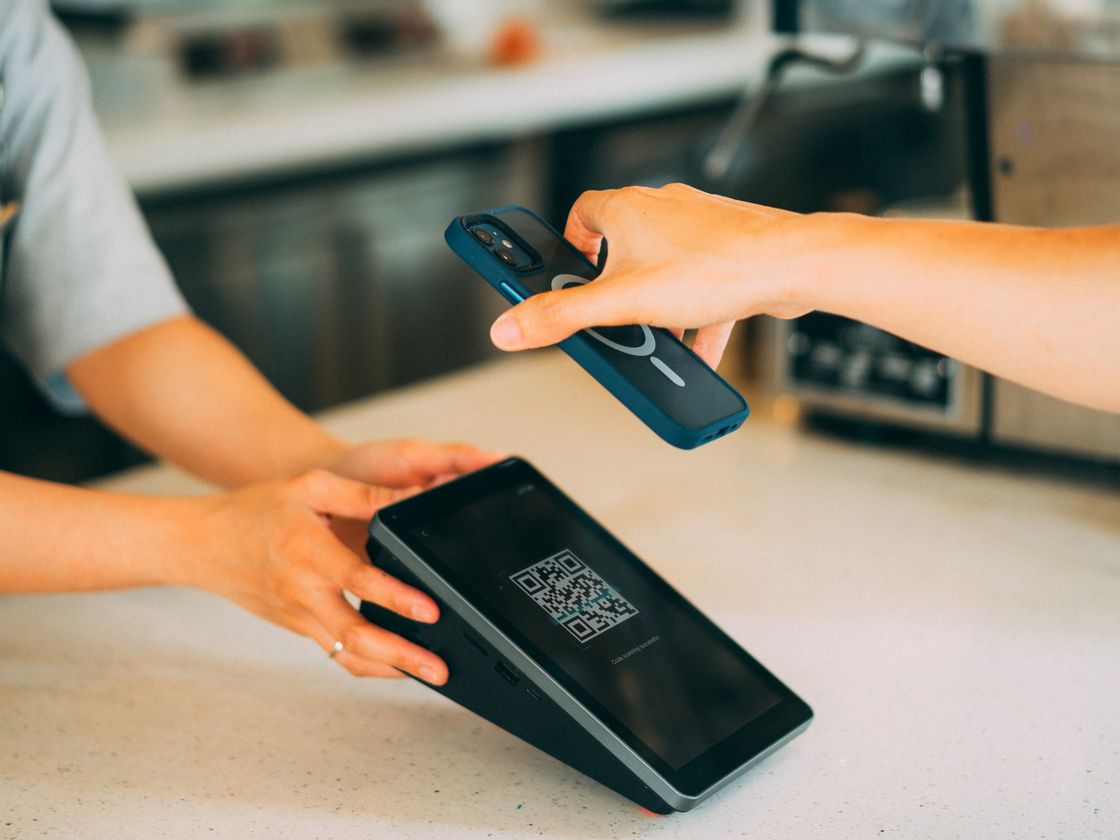
A PIX QR code stores your PIX details in a format that Brazilian banking apps recognize. From your customer’s side, it looks like this:
- They open their bank app and choose the option to pay with PIX by scanning a QR code.
- They scan your code. The app reads the receiver details from it.
- The app shows who is receiving the payment, so the customer can check it.
- They confirm the amount and pay inside the bank app.
Infinite QR only creates the code. The payment happens in the customer’s bank app, and Infinite QR never holds or processes any money.
This saves time on both sides. Your customer does not need to remember or look up a key, and you do not need to repeat it all day. At a busy counter, that can mean a shorter line and fewer interruptions for your staff.
It also reduces the small errors that creep in when keys are read aloud or copied by hand. The code carries the details exactly as you entered them, so what the customer’s app receives matches what you checked.
Who it’s for
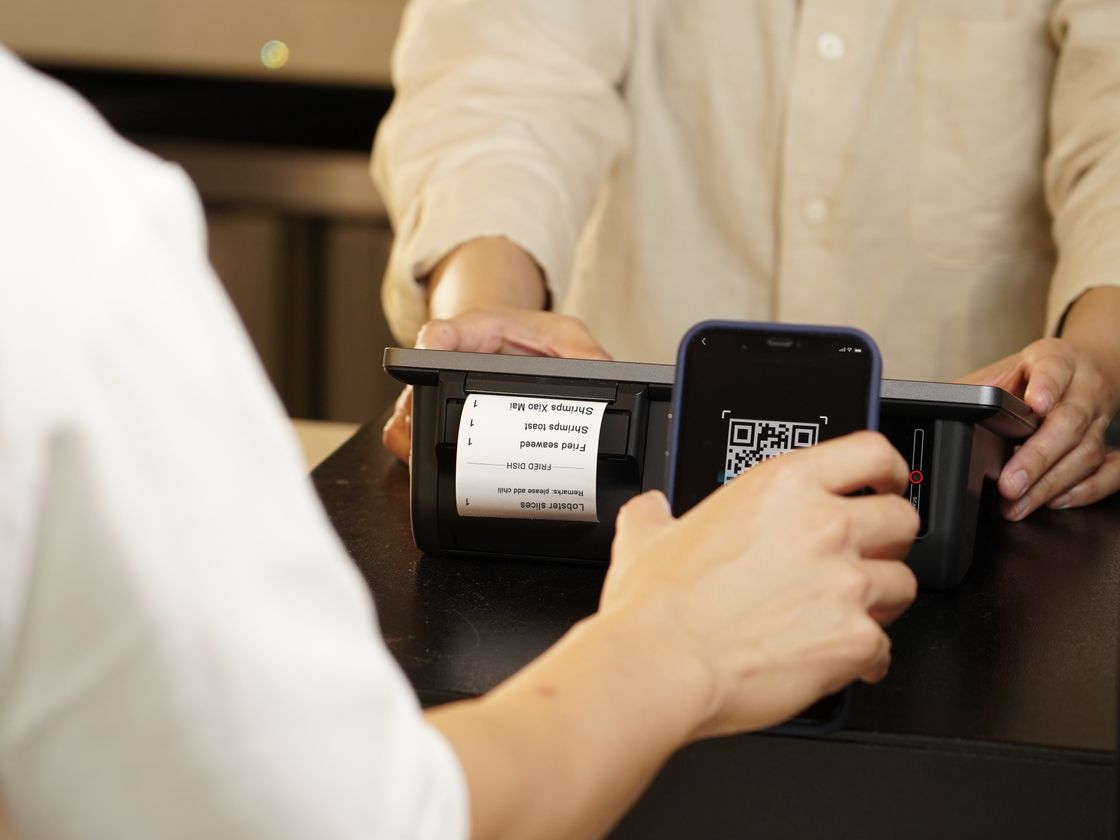
- Small shops and stalls. Keep a code at the counter so customers can pay without asking for your key.
- Freelancers and consultants. Add the code to your invoices or proposals.
- Delivery businesses. Give customers a printed code with the order.
- Clubs, schools and associations. Collect fees or contributions with one shared code.
- Market and event vendors. One sign, ready for every customer.
- Service providers. Put it on your business card or a leave-behind after a job.
How to create one with Infinite QR
- Sign up. Create your Infinite QR account. The Brazilian PIX type is included in every paid plan, starting with Starter at $1 a month. It is not part of the Free plan.
- Choose the Brazilian PIX type in the QR code generator.
- Enter your PIX details, such as your key and the receiver name. Check every character against your bank app before moving on.
- Customize the look. Pick colors and a shape, and add your logo (logos are for paid plans). Keep strong contrast.
- Download it as PNG or SVG. Use PNG for screens and small items and SVG for large prints.
- Test-scan before printing. Scan it with a bank app and confirm that the right name shows up. Consider a small test payment to be sure.
Static code: what that means
The PIX code is static. Your details are stored inside the code itself, so it cannot be changed after printing, and scans are not counted. If your key changes, you create and print a new code. If you want a printed code that you can redirect later, a Website URL code pointing to a page of your own is the dynamic alternative, though it opens a page rather than the payment app.
Tips for better results
- Write a call to action. “Scan to pay with PIX” leaves no doubt.
- Put it at the point of payment. Next to the register or on the invoice total.
- Print it large enough. See the QR code size guide.
- Keep it clean. Dark code on a light background, no glare, no folds across it.
- Test with more than one bank app if you can.
- Show your business name next to the code, so customers can match it with what their bank app displays.
Because the code is static, take a few extra minutes at the start. Confirm the receiver name, scan from a printed copy, and keep your own record of which key you used. If you ever need to switch keys, you will know exactly which printed items to replace.
Common mistakes to avoid
- Printing before checking the details. A wrong key or name means payments go somewhere else. Double-check the account details first.
- Printing a big batch of static codes and then changing your key. You would have to reprint them all.
- Skipping the test scan of the printed version.
- Letting someone cover your code with a sticker. Read our QR code safety tips and check your displays regularly.
Questions people ask
Does Infinite QR handle the money?
No. Infinite QR creates the code only. The payment is made in the customer’s bank app.
Can I edit the PIX code later?
No. It is a static code, so the details live inside it. To change them, make and print a new code.
Will I see how many people scanned it?
No. Static codes do not record scans.
Is it available on the Free plan?
No. It is included in every paid plan, starting at $1 a month.
Want to try it? The Brazilian PIX QR code is included in every paid plan from $1 a month. Compare the plans and get started.